Remove Objects - Photo Editor
- 4.7
- Rating
- 10.00M
- Installs
- Free
- Price

 Analysis by App-foxy
I tested Remove Objects - Photo Editor as a practical photography app rather than treating it as a one-tap novelty. Its purpose is straightforward: clean unwanted objects, logos, text, and other distractions from a picture with an AI-assisted retouching workflow. In my experience, the useful question is not whether it can make something disappear, but whether the result looks natural enough for the way you plan to use the image.
That distinction matters. Removing a small mark from a wall is very different from rebuilding a person’s face, a patterned shirt, or a busy street behind a subject. This app is most convincing when the unwanted element is clearly separated from a simple background. It becomes more demanding when the surrounding details are complex, repeated, or important to the photograph’s meaning.
What I found when judging the app’s trust and controls
The app comes from InShot Inc. and sits in the photography category. It is free to install, rated for Everyone, and has reached over ten million installs, with a 4.6 average from around 423 thousand ratings. Those figures suggest that it has found a broad audience, but popularity alone is not a reason to hand over every photo without thinking. I paid closer attention to what I could control while editing and to the moments when a picture might contain sensitive information.
You May Also Like

 Google Keep - Notes and lists
Google Keep’s Quiet Growth Shows the Appeal of Simpler Notes
As mobile work gets busier, Google Keep keeps winning a simple contest: capture a thought quickly, find it later, and get on with the day.

 Blood Strike: 2.5 Anniversary
Blood Strike’s Loadouts Turn Every Drop Into a Tactical Gamble
A close look at Blood Strike’s custom loadouts: how fast access to signature weapons reshapes its battle royale rhythm, rewards preparation, and narrows the gap between fights.

 Pandora - Music & Podcasts
Pandora’s Music Is Easy to Start, but Harder to Recover
Pandora’s strength is its low-effort path from a seed to a station. Its weak spot is how much confidence it asks you to place in connection, setup, and quiet recovery.

 8 Ball Pool
 Is Built on Rivalries, Rematches, and Routine
A close look at the rivalries, rematches, shared routines, and unanswered safety questions that turn a quick pool match into a persistent mobile community.

 Samsung Music
’s Quiet Strength Is Playing What You Already Own
Its reach comes less from spectacle than from dependable access to a personal library. That simplicity is both the app’s strongest retention engine and its ceiling.

 AccuWeather: Weather Radar
AccuWeather Review: A Quick, Clear Forecast for Everyday Decisions
For everyday plans, the best forecast is the one you can understand quickly. AccuWeather makes rain timing, radar, and local conditions easy to act on, with a few trade-offs.
More From Our News Desk



The current version is 1.323.87 and it supports Android 9 or later. That makes compatibility reasonably accessible for people using older phones, although editing performance will still depend on the device, image size, and complexity of the selected area. I would not judge the app only by the speed of a simple removal because a large, detailed image creates a much more revealing test of both responsiveness and accuracy.
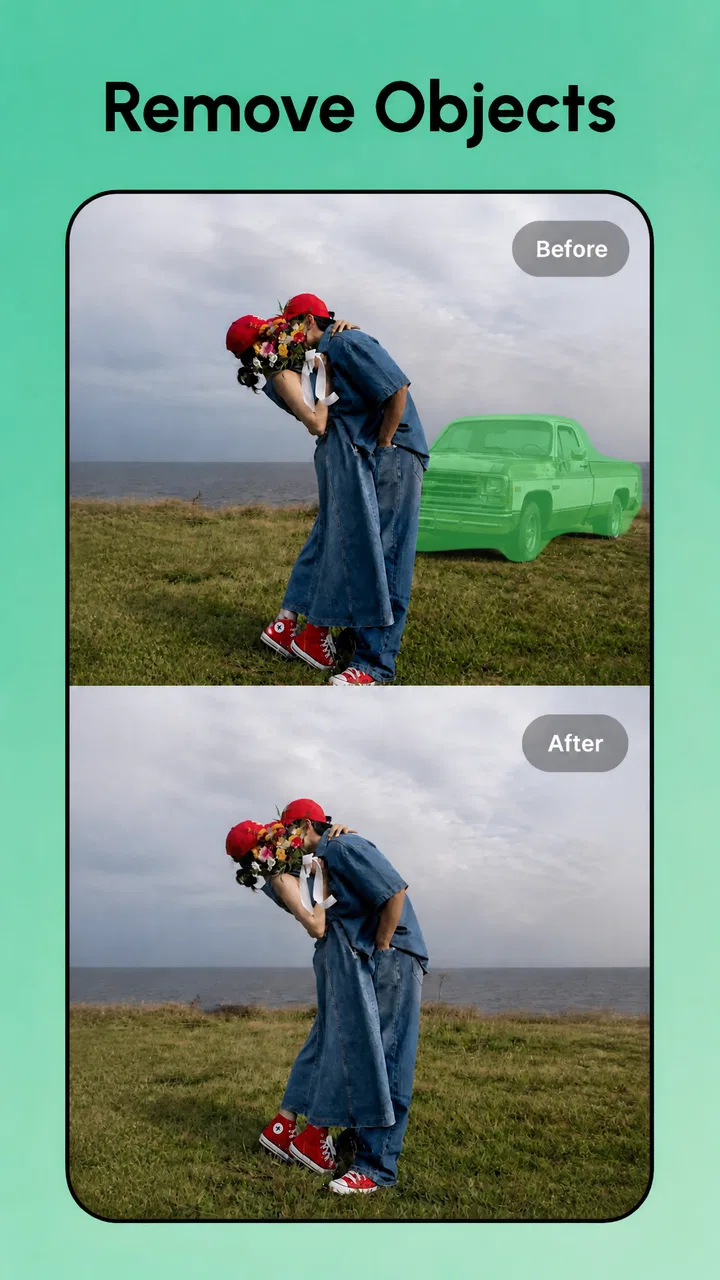
The main editing idea is easy to understand. I select the unwanted part of a photograph, apply the removal action, and inspect what has been reconstructed around it. The appeal is that I do not need a desktop editor with layers, masks, or a long learning curve. For a quick correction before sharing a picture, that simplicity is a real advantage.
At the same time, a simple interface can hide important decisions. The quality of the final image depends on how carefully I mark the object and how much of the nearby background I include. A loose selection may erase useful detail, while a selection that is too tight can leave a visible edge. I recommend zooming in before marking anything, especially when the object touches hair, fingers, lettering, or a strong outline.
Why the result depends more on the background than the object
In a realistic everyday situation, imagine taking a holiday photo beside a railing and noticing a discarded cup near the bottom corner. This is exactly the sort of job where the app feels helpful. The background is relatively predictable, the cup is separate from the main subject, and the edit does not need to invent a person or an important architectural detail. I can remove the distraction, check the repaired area, and save a cleaner version without opening a full professional editor.
Now change the example to a portrait where a stranger overlaps the subject’s shoulder. The app may still produce a usable attempt, but I would inspect it carefully. The replacement area can borrow nearby textures in a way that looks plausible at first glance and artificial after a closer look. This is one of the most important trade-offs: convenience is strongest for small, isolated imperfections, while demanding edits still benefit from a more controlled tool.
I also found that repeated textures deserve special attention. Brick walls, tiled floors, fences, and printed fabric can expose a repair because lines no longer continue naturally. After removing an object, I would compare the edited area with the original at full size and at the size where I intend to post it. A flaw that disappears in a small social post may be obvious in a print or a portfolio image.
Practical editing habits that improve the outcome
My first useful habit is to make several restrained attempts instead of one oversized selection. If a cable crosses a plain sky, I would remove a short section, inspect it, and then continue rather than covering the entire cable and a large area around it. Smaller corrections give the reconstruction less work and make it easier to undo a mistake.
A second habit is to preserve the original before experimenting. I would treat the edited picture as a new version, not as a replacement for the source. That is especially important when removing a logo, sign, or person changes the context of the image. Keeping the original lets me compare the result and decide whether the edit improves the photograph or merely makes it less truthful.
A third insight is that object removal can be useful before cropping, but not always after it. If I crop tightly first, the editor has less surrounding material to use as a visual reference. For a background distraction near the edge, I would test the removal on the uncropped image, review it, and crop afterward. This workflow can preserve more context for the reconstruction.
I would also avoid judging a result only by the preview. A quick glance can miss duplicated textures, softened lettering, or a strange shadow. I zoom in around the boundary of the removed area, then zoom out to see whether the correction attracts attention. The best edit is often the one nobody notices, not the one that looks impressive while the selection is still active.
Where privacy and data sensitivity enter the workflow
Photo editing becomes more sensitive when the image includes a face, a document, a child, a home interior, a license plate, or a private conversation visible on a screen. Removing an item from a picture does not automatically make the rest of the image safe to share. I would inspect the complete frame before saving or sending it, because the app’s retouching task is only one part of a wider privacy decision.
I am particularly cautious with screenshots and documents. If I use the editor to remove a name or number, I would not assume that the result is equivalent to secure redaction. A visual repair can leave traces, preserve surrounding context, or create an image that still reveals more than intended. For genuinely confidential material, I would use a purpose-built redaction workflow and verify the exported image independently.
The same caution applies to photographs of other people. Removing a passerby from a personal travel photo is different from altering an image used to make a claim about an event. The app makes retouching accessible, which is useful, but that accessibility also makes it easier to forget that editing can change meaning. I recommend keeping the unedited copy and being transparent when the distinction matters.
From a trust perspective, I prefer to examine the choices visible in the app and the operating system rather than guess about unseen practices. I would review the permissions requested on my device, read any privacy information presented by the developer, and check whether the app gives clear choices around access to photos. I would not grant broader access than the editing task requires. These are simple steps, but they matter more than a polished interface when personal images are involved.
The app’s free model also deserves a practical look. It is free to use as a download, while in-app purchases range from $0.49 to $39.99 per item. I would check the purchase screen carefully before confirming anything and distinguish optional upgrades from the basic editing path. The presence of a purchase option does not tell me whether I need it for a particular job, so I would first test the workflow with a non-sensitive image and decide whether the available controls justify spending money.
How much control I would expect from a one-purpose editor
The strongest part of this app is the narrow focus. Instead of learning a complete photo suite, I can concentrate on removing distractions. That makes it approachable for someone who wants to clean up a product photo, tidy a room image before listing an item, or fix a small background blemish. The app is also easier to recommend to a friend who finds layers and selection tools intimidating.
The limitation is equally clear: a focused remover is not automatically a full retouching studio. When I need precise edge control, multiple editable layers, color correction, perspective adjustments, or a carefully repeatable professional workflow, I would choose a more comprehensive editor. Those alternatives take longer to learn, but they give me more responsibility over exactly what changes and why.
Compared with a standard phone gallery editor, this app is more directly aimed at reconstruction rather than basic brightness, cropping, or filters. Compared with a desktop editor, it is quicker and less demanding but less suitable for complex compositing. I see it occupying the middle ground: more specialized than ordinary gallery tools, more convenient than professional software, and dependent on the same visual judgement that any serious retouching requires.
One detail I would not overlook is the difference between removing an object and repairing the story of a picture. A clean background can improve composition, but it can also make a scene look staged. For personal photos, that may be harmless. For marketplace listings, travel memories, journalism, or evidence, I would think carefully before changing the scene. The app gives me the ability to alter the frame; it does not decide whether doing so is appropriate.
Who will get the most from it, and who should pass
I think it is a good fit for casual photographers, social media users, travelers, and anyone who regularly notices small distractions after taking a picture. It is especially useful when the desired result is quick and visual rather than technically perfect. A person selling a chair online might remove a stray cable from the background, while a traveler might clean up a photo of a landmark without opening a complicated editor.
I would be more cautious recommending it to photographers who deliver high-resolution commercial work or need every edit to be reproducible. They may prefer tools with more explicit masks, history, layer management, and export control. I would also steer away from relying on it for faces, hands, fine typography, transparent objects, or backgrounds with strong repeating geometry unless the user is prepared to inspect and possibly redo the edit elsewhere.
It is not the right choice for someone who wants a broad creative suite with drawing, detailed color grading, or advanced montage work. Its value comes from reducing one particular kind of friction. If that is not the task I perform regularly, a general editor may offer better long-term usefulness even if its object-removal feature takes more effort.
My final view after using it cautiously
Remove Objects - Photo Editor succeeds when I treat it as a fast cleanup tool rather than an automatic guarantee of invisible editing. Its free entry point, Everyone rating, broad Android compatibility, and focused workflow make it approachable. In my hands, it is most convincing on isolated distractions against uncomplicated backgrounds, where a careful selection can produce a natural-looking correction in little time.
The app deserves a place on a phone used for everyday photography, but I would build in a review step every time. Zoom into the repaired area, compare it with the original, inspect the entire image for sensitive details, and keep the source file. Those habits address the main weaknesses better than simply repeating the removal action.
In the end, I would recommend it to a friend who wants to tidy ordinary photos without learning a professional editor. I would not recommend trusting it blindly with private documents, meaningful evidence, or demanding commercial retouching. Its convenience is genuine, and so are its boundaries. Used with that balance in mind, it is a useful photography companion rather than a replacement for careful editing judgment.
FAQs for Remove Objects - Photo Editor
01What is Remove Objects - Photo Editor and how does it work?
Remove Objects - Photo Editor is a powerful tool designed to help users easily remove unwanted elements from their photos. Using advanced algorithms, the app analyzes the selected area and seamlessly blends the background to fill in the space. This feature is particularly useful for enhancing images by eliminating distractions.
02Is Remove Objects - Photo Editor free to use or does it require a subscription?
The app offers a free version with basic features, allowing users to perform essential edits. However, for more advanced tools and features, such as high-resolution exports and ads-free experience, a subscription is required. Keep an eye out for any promotional offers that may provide discounts on subscriptions.
03Can Remove Objects - Photo Editor handle complex backgrounds efficiently?
Yes, the app is equipped with advanced AI technology that can handle both simple and complex backgrounds. While it performs exceptionally well in most scenarios, the results may vary depending on the intricacy of the background and the object being removed. Users can fine-tune edits manually if needed.
04Is Remove Objects - Photo Editor available for both Android and iOS platforms?
Absolutely! Remove Objects - Photo Editor is available for download on both Android and iOS devices. The app is optimized for different operating systems, ensuring a smooth user experience regardless of the platform. Always check the app store for the latest version and updates.
05What are the privacy implications of using Remove Objects - Photo Editor?
The app prioritizes user privacy and does not store any images on its servers. All processing is done locally on the device, ensuring that your photos remain private and secure. Users should review the privacy policy for detailed information on data handling and permissions required by the app.
Pros
- Intuitive interface for easy navigation.
- High-quality object removal results.
- Supports multiple image formats.
- Quick processing with minimal lag.
- No intrusive ads during editing.
Cons
- Limited free features; many require purchase.
- Occasional crashes on older devices.
- Watermark on free version exports.
- Lacks advanced editing tools.
- Requires stable internet for updates.

Remove Objects - Photo Editor
Gallery